
Caido

Caido is a web application security testing proxy. Configure a browser or client to send traffic to it, then inspect and replay HTTP and WebSocket requests from its browser-based interface.
Use Caido only with applications you own or are authorized to test. HTTPS contents are readable only after you install Caido’s CA certificate in the client you are testing.
Install and launch
Section titled “Install and launch”Caido is included with Parrot Security. If it is not installed, add the package:
sudo apt install caidoOpen Caido from Applications > Pentesting > Web Application Analysis > Web Application Proxies > Caido, or start it from a terminal:
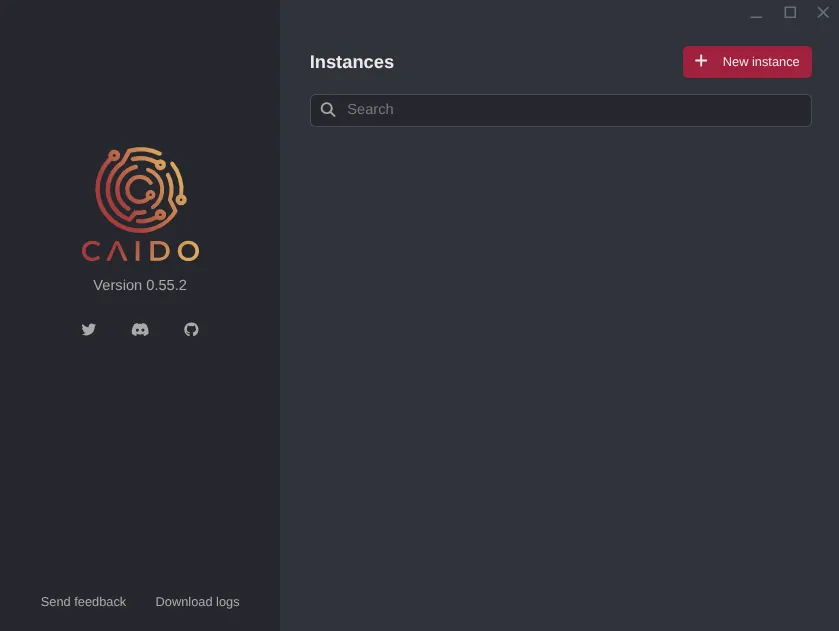
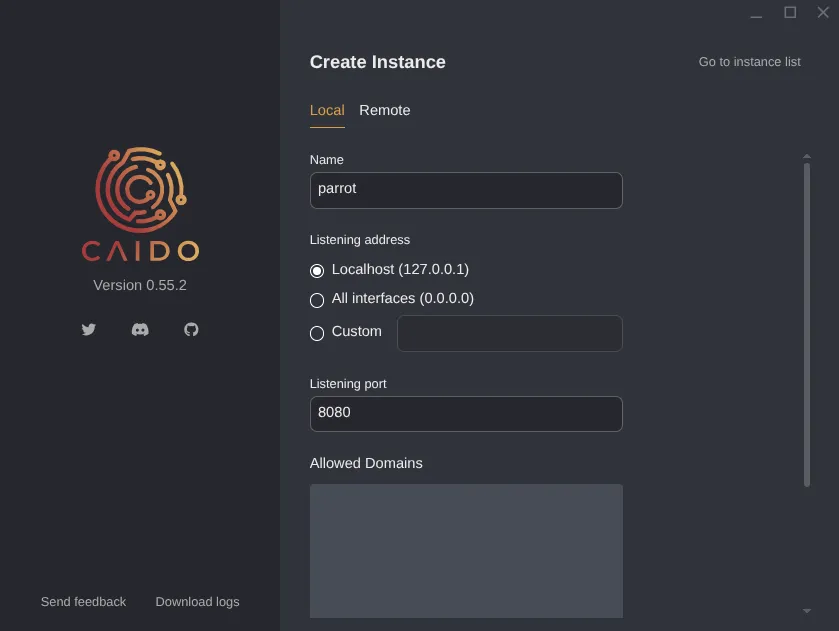
caidoThe launcher opens on the Instances screen. Select + New instance, give the instance a name, and choose its listening address and port. For local use, the defaults (127.0.0.1 and 8080) are a good choice.
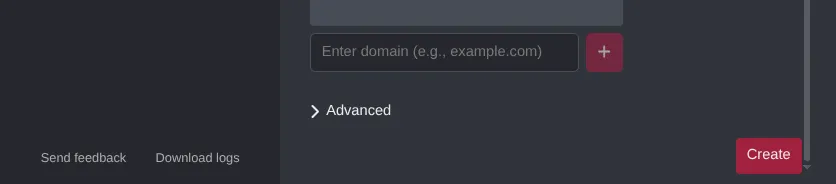
Review the settings and select Create:
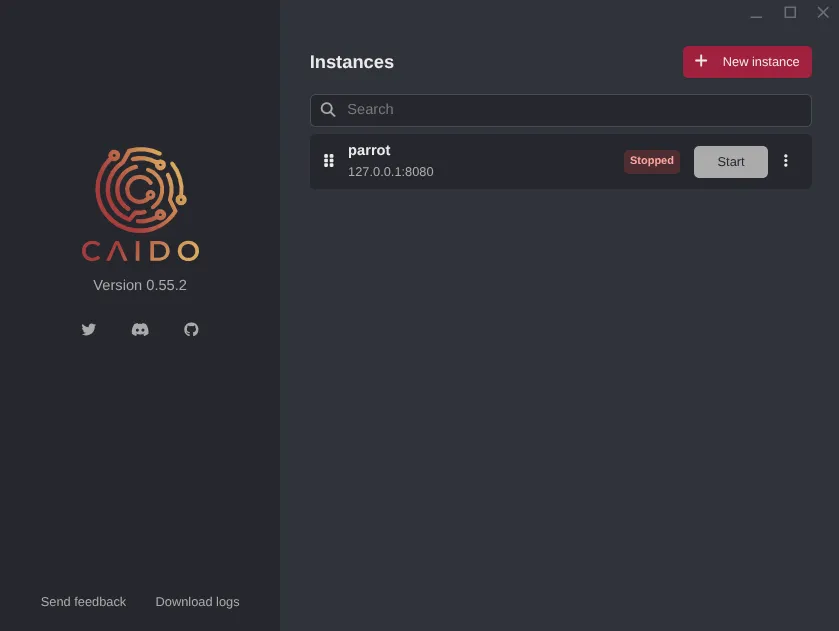
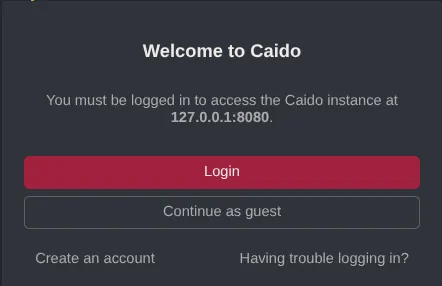
Your new instance appears in the list. Select Start, then open http://127.0.0.1:8080 in your browser. Sign in with a Caido account or choose Guest Mode.
Headless mode
Section titled “Headless mode”On a remote server, you can start Caido from the terminal and keep its listener on the local interface:
caido --listen 127.0.0.1:8080To reach the instance from another machine, forward the port over SSH rather than exposing the interface to an untrusted network:
ssh -L 8080:127.0.0.1:8080 user@serverConfigure a browser
Section titled “Configure a browser”Caido only receives traffic from clients configured to use its proxy. In the browser you want to test, set an HTTP proxy to 127.0.0.1 on port 8080. FoxyProxy Standard is one way to switch the proxy on only when needed:
- Install FoxyProxy Standard in the browser.
- Add a proxy entry with Host
127.0.0.1, Port8080, and Type HTTP. - Enable it for the authorized test session and turn it off when finished.
Inspect HTTPS traffic
Section titled “Inspect HTTPS traffic”To inspect HTTPS contents, install Caido’s CA certificate in the browser profile used for testing:
- Enable the proxy and visit
http://caido.localhost/. - Download the certificate from Caido’s settings.
- Import it into the browser’s trusted certificate authorities.
Trust this certificate only in a browser profile used for authorized testing, and remove it when you no longer need it.
What Caido can do
Section titled “What Caido can do”| Feature | Description |
|---|---|
| Proxy / Intercept | Intercept, inspect, and forward HTTP/S and WebSocket traffic in real time |
| HTTP History | Review proxied requests and responses, and search them with HTTPQL |
| Replay | Resend and edit requests within the authorized test scope |
| Automate | Run repeatable tests against in-scope request parameters |
| Match & Replace | Apply rules to change requests or responses |
| Sitemap and Scope | Organize discovered endpoints and focus work on selected domains and paths |
| Workflows | Chain steps for encoding, decoding, and data transformation |
| Plugins | Extend Caido with community or custom JavaScript plugins |
| Projects | Keep work for separate applications in distinct workspaces |
How traffic flows
Section titled “How traffic flows”Only traffic sent to Caido’s configured proxy listener appears in its history; it does not automatically redirect all system traffic. When your browser uses the proxy, its requests pass through Caido before reaching the application, and the responses return through the same path. Installing Caido’s CA certificate lets it inspect HTTPS contents from that browser profile.
Further Reading
Section titled “Further Reading”For current details and advanced configuration, see Caido’s upstream resources: